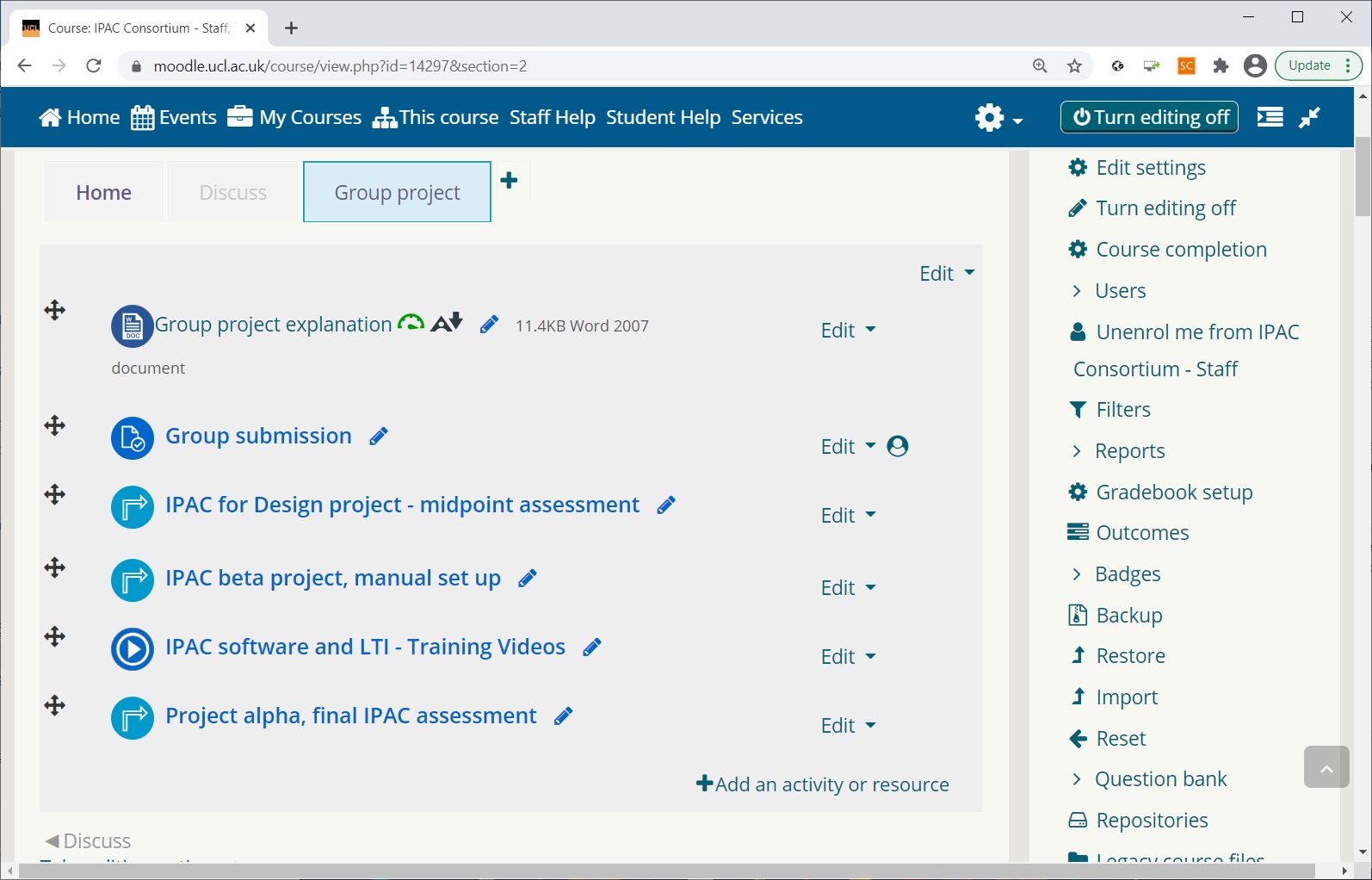
Setting up IPAC LTI:
Linking the IPAC LTI with your VLE
See the full process in the video, or the step-by-step explanation below.
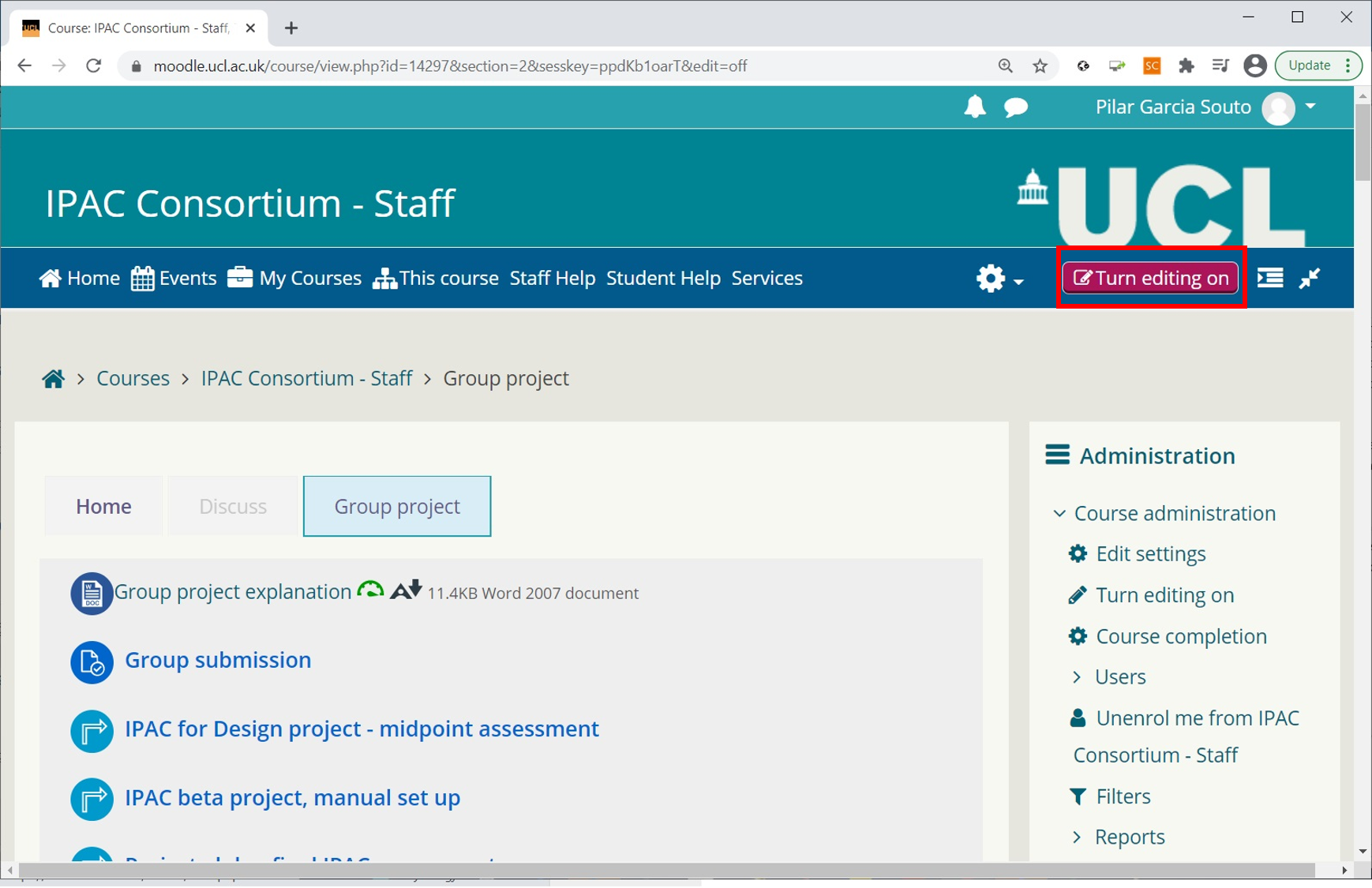
Identify the VLE page where you want to put the IPAC LTI. In order to add the IPAC activity onto your page, you will need tutor access on that page. Select "Turn editing ON" on this page.
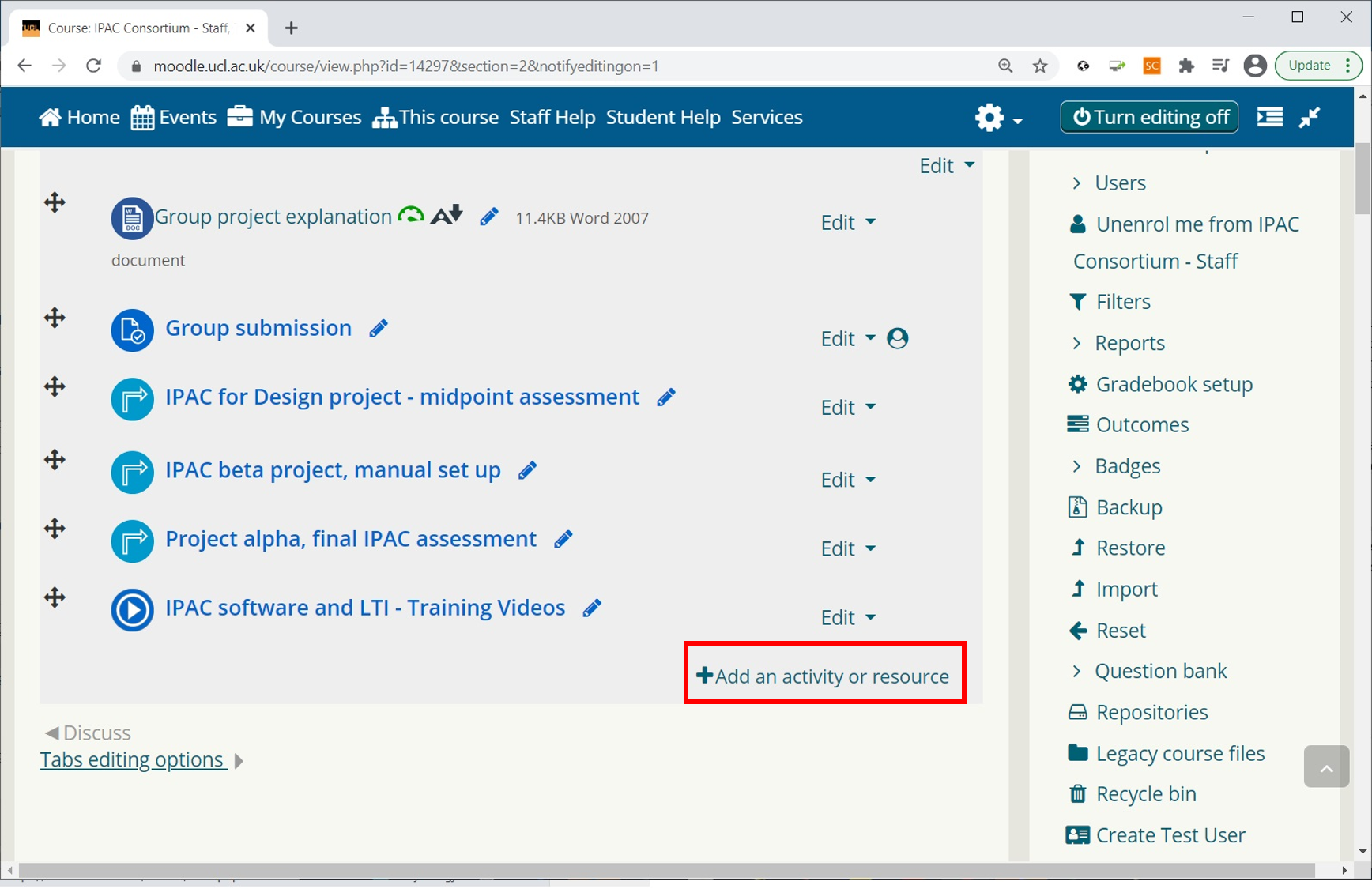
Next, at the bottom of the page, click on 'Add an activity or resource'.
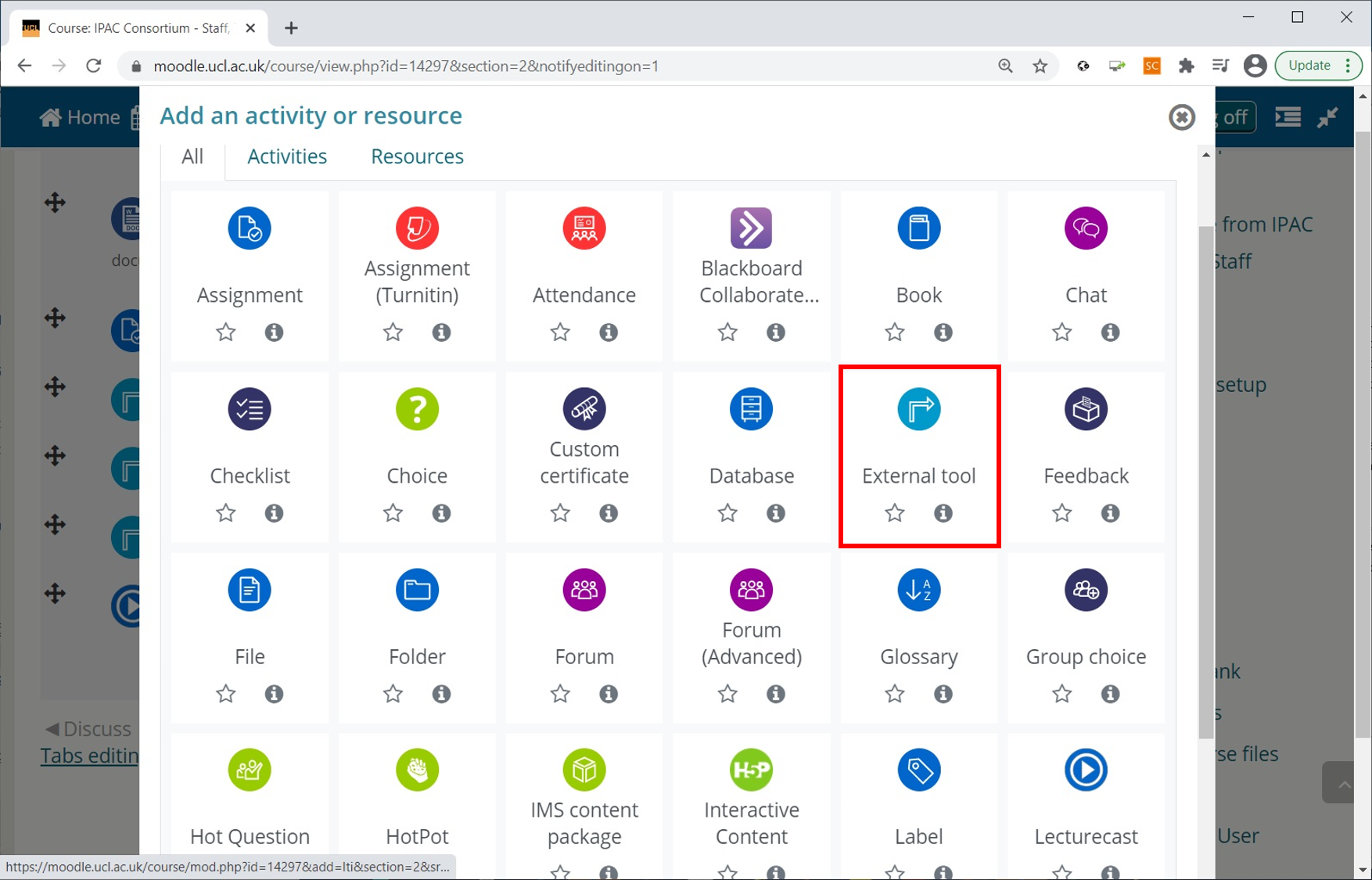
Select the 'External tool'. Please note that the wording might be different depending on your VLE.
This opens a menu for 'Adding a new External tool to Group project' into the VLE. If the settings page doesn't open automatically, go to the link created on your VLE page and select 'Edit'. You should see a page similar to the one below.
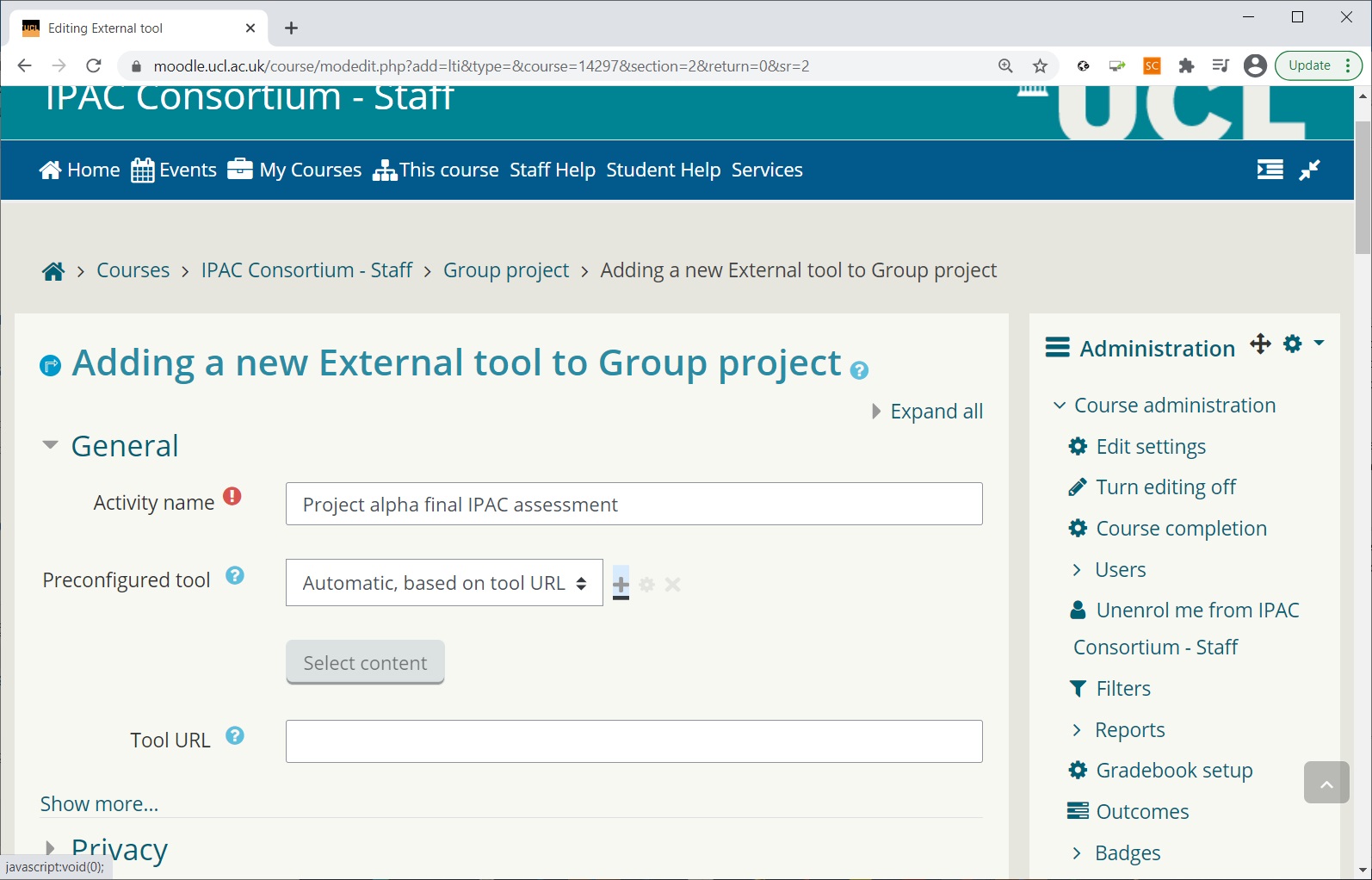
General
Activity name
- give a name of your choice, eg. Project alpha final IPAC assessment
Preconfigured tool
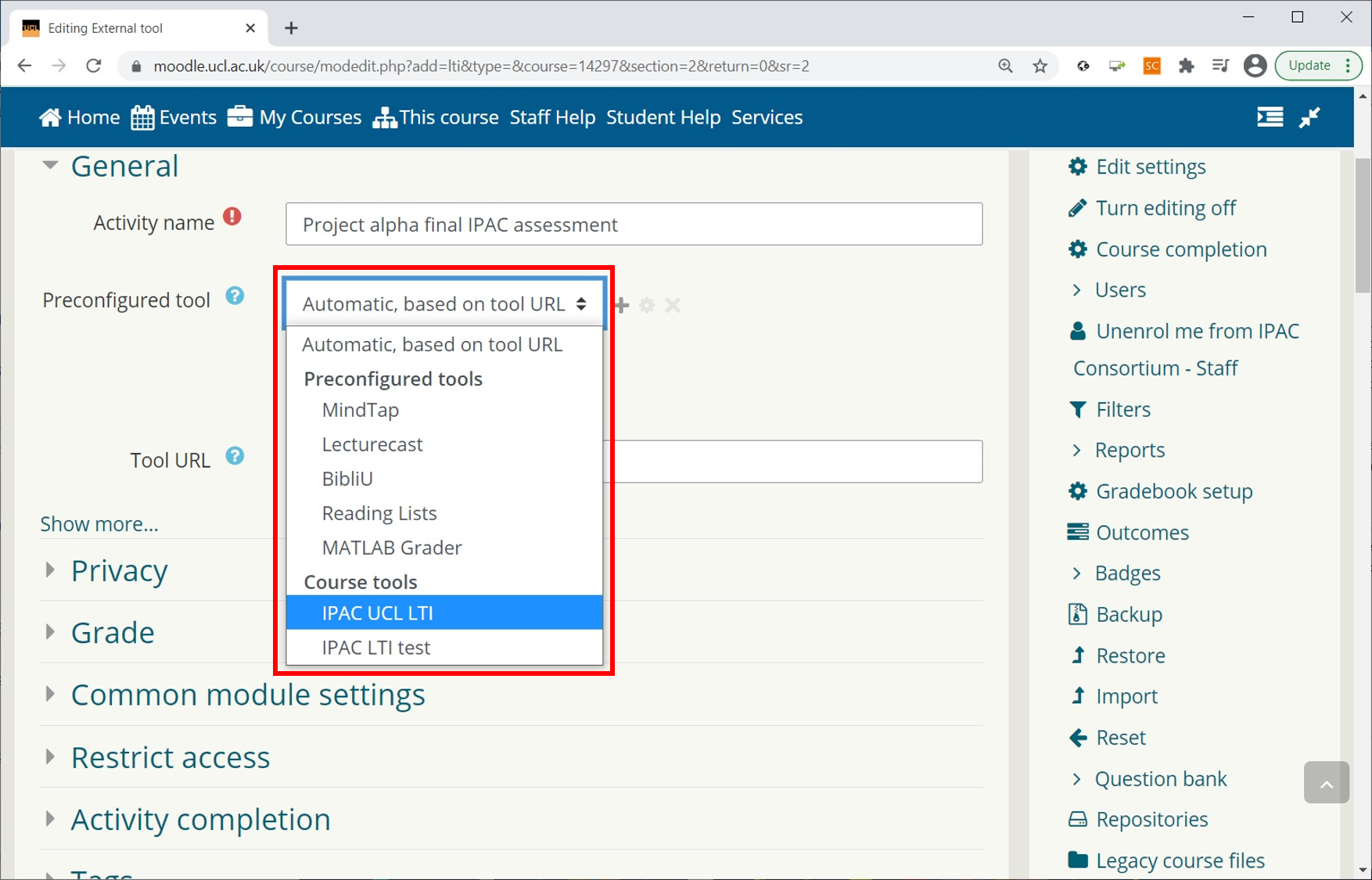
- Already setup by the Institution : If the IPAC LTI has already been setup on the VLE by your institution or used already in your course, you can select the preconfigured IPAC tool from the drop-down menu.
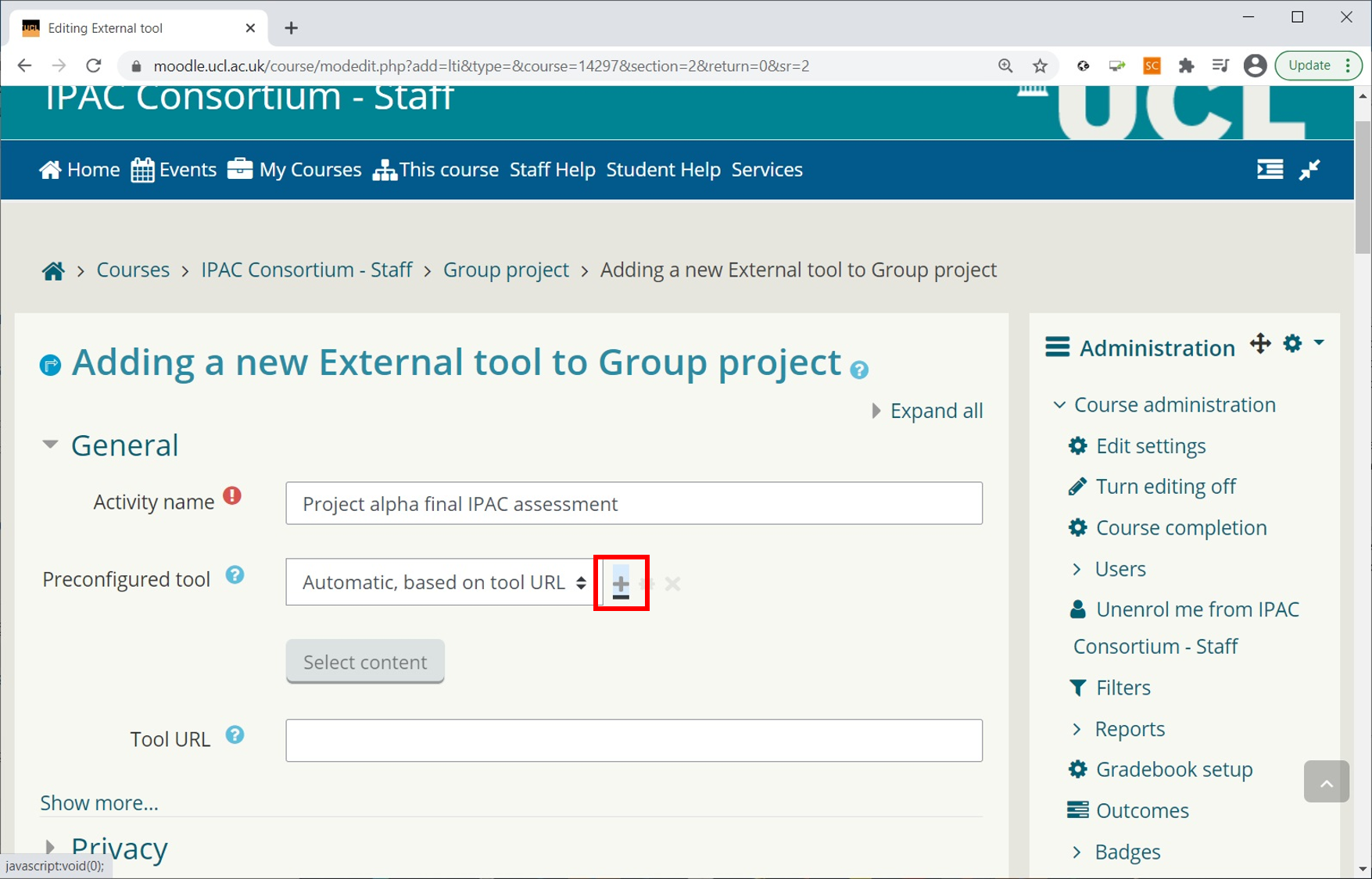
- Manual setup: If the IPAC LTI has not been used before or is not enabled at institutional level, instead of choosing one of the Preconfigured Tools, you will need to add one by clicking on the '+' button.
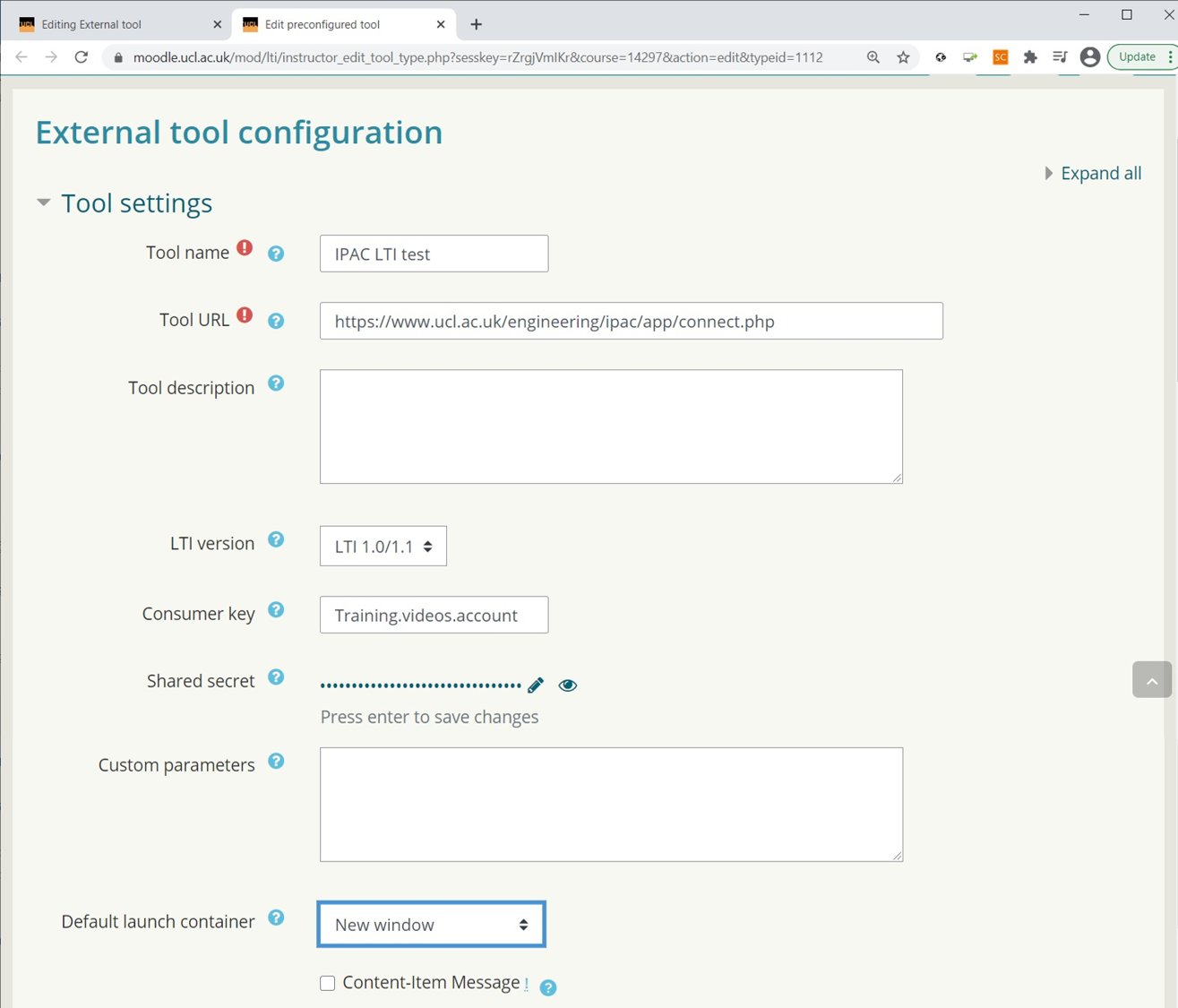
This will take you to Tool settings where you should setup the following:
- 'Tool name', eg. IPAC LTI test
- 'Tool URL' (note: paste the following URL), https://www.ucl.ac.uk/engineering/ipac/app/connect.php
- 'Consumer key', provided by your institution in the setup email
- 'Shared secret', provided by your institution in the setup email
- 'Default launch container', New window
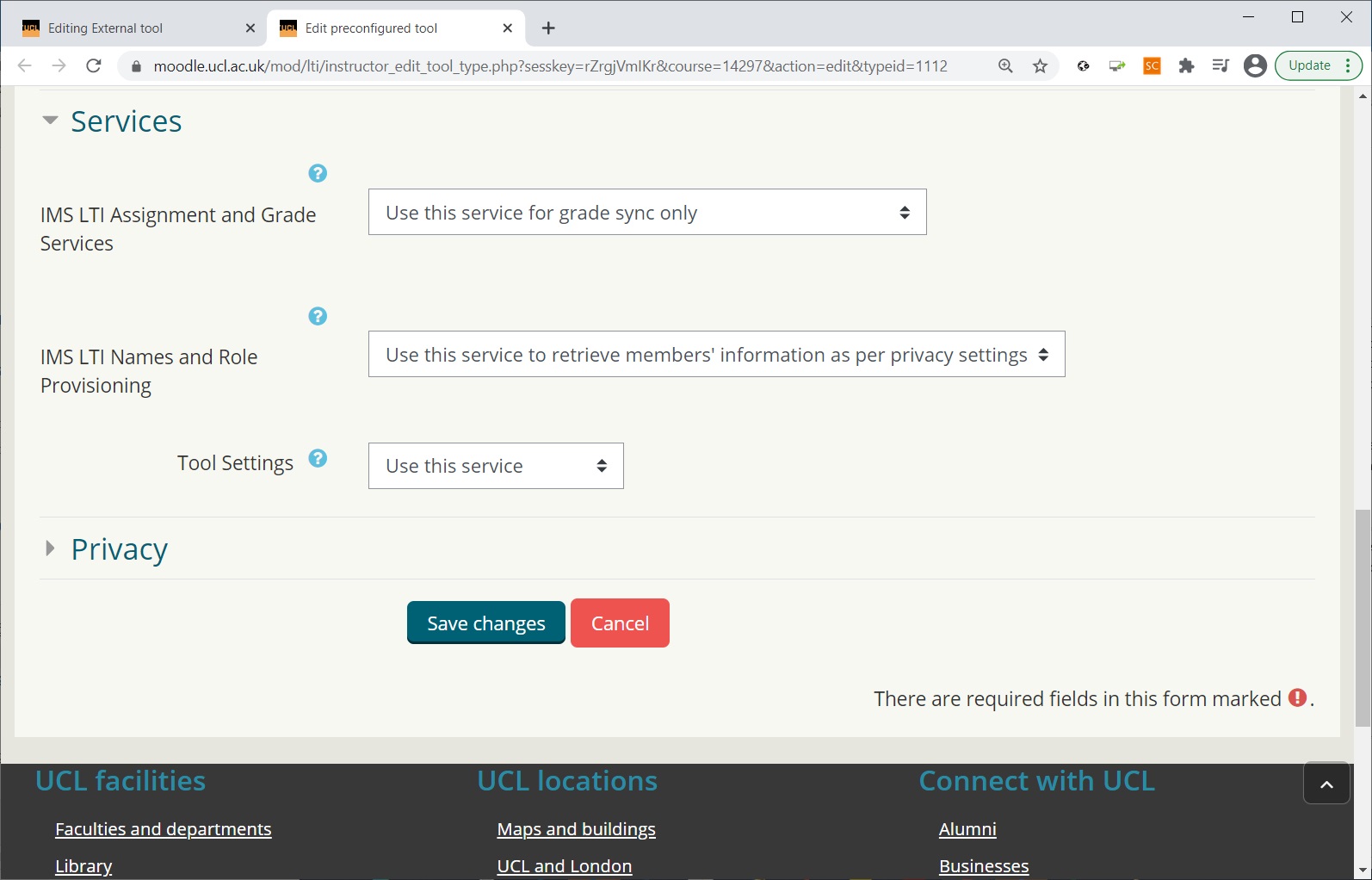
Services
In Services select these options:
- IMS LTI Assignment and Grade Services - Use this service for grade sync only (this allows the LTI to give us grades)
- IMS LTI Names and Role Provisioning - Use this service to retrieve members' information as per privacy settings (allows the LTI to look into your course to obtain a list of students)
- Tool Settings - Use this service
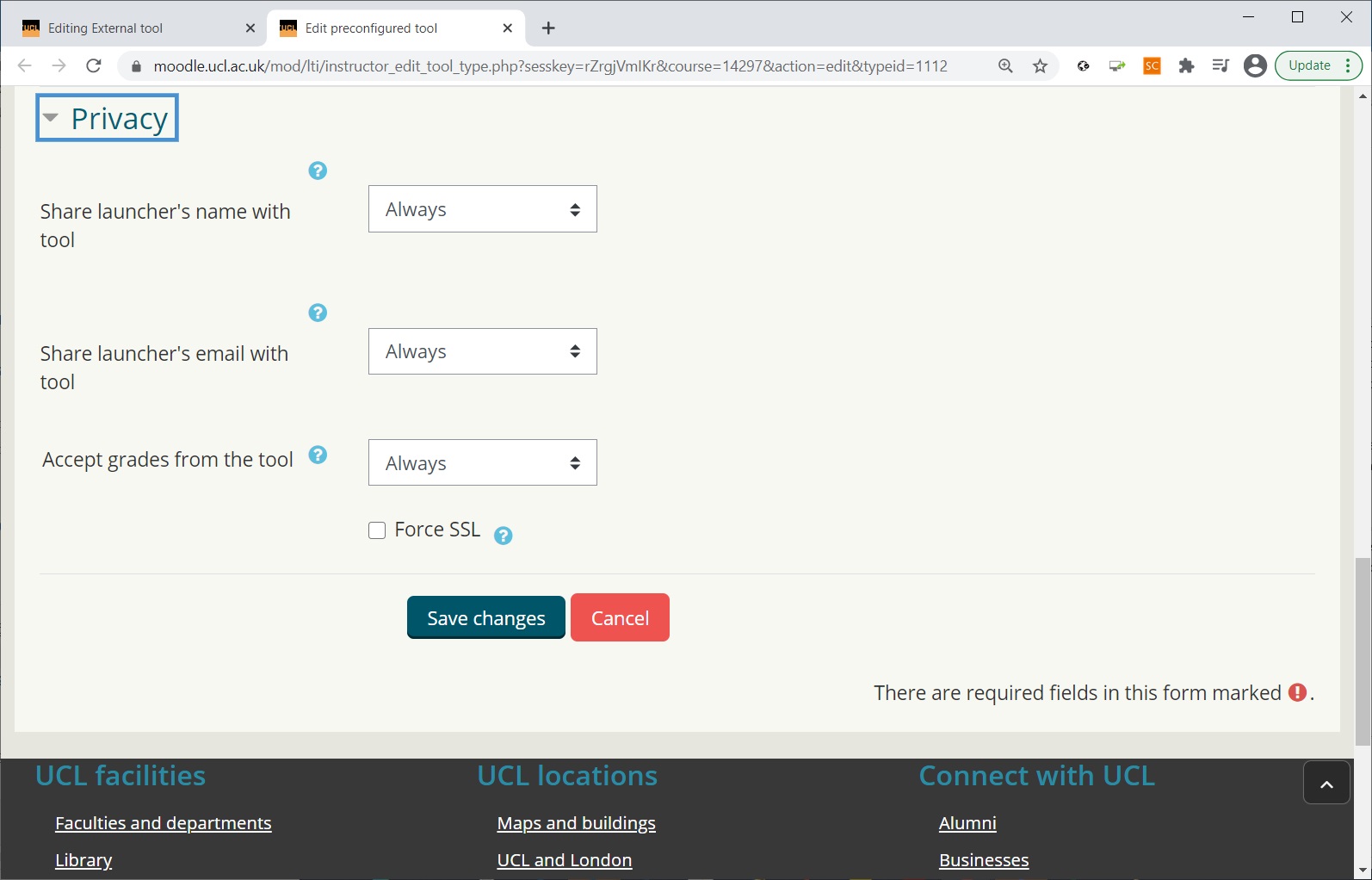
Privacy
The Privacy options are set by default.
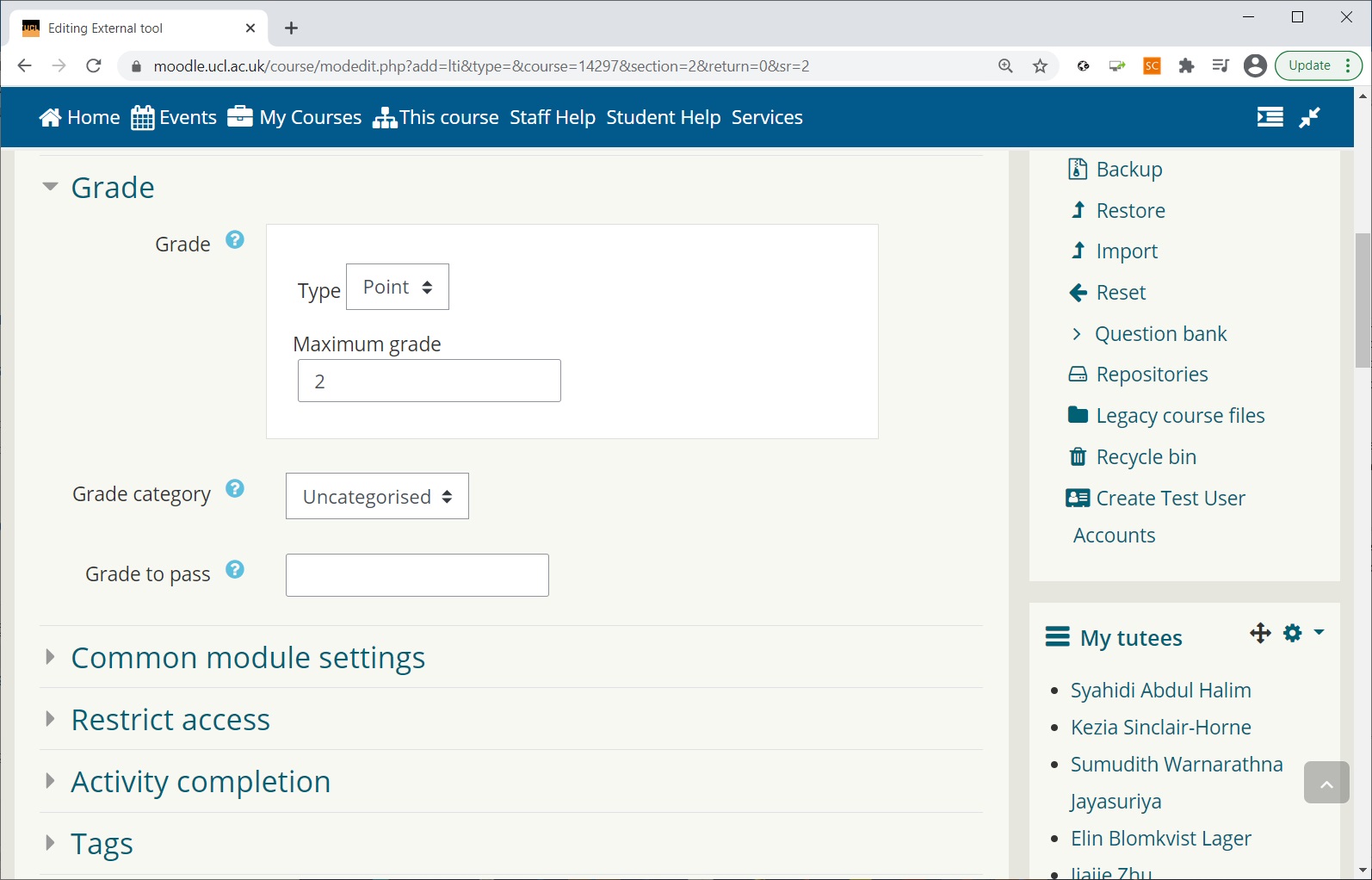
Grade
Set the grade depending on the IPAC method used:
- Maximum grade = 2 if you are going to use IPAC as normalized value
- Maximum grade = 100 if you are going to use IPAC as a percentage
- Grade to pass = irrelevant at this stage, but can put any value you want.
Common module settings, Restrict access, Activity completion and Tags
These settings are the same as any other activity in your VLE. Set up as desired.
E.g. Show on course page; Hide from students; and Make available but not shown on course page.
Click on 'Save and return to course'.
Now you have a link to the IPAC LTI on your VLE, in this example it is named "Project alpha, final IPAC assessment".